🔍 Google Password Manager Review 2026: Is It Actually Safe?
Chrome's password vault uses AES-256 encryption and syncs across every device you own. The RedLine Stealer campaign of late 2024 extracted an estimated 200 million browser-stored credentials without breaking that encryption once. Attackers stole active Google account session tokens instead, then pulled the already-decrypted password data through the same sync API Chrome uses. Encryption is not the weakness in Google Password Manager. The weakness is what controls access to the decryption.
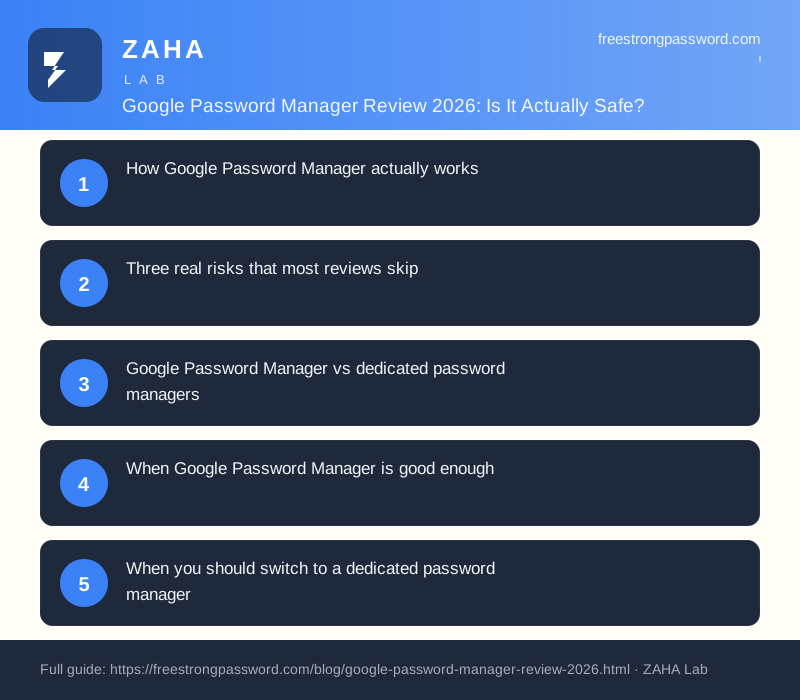
How Google Password Manager actually works
When you save a password in Chrome, it is encrypted using AES-256 before being stored locally on your device. If you are signed into a Google account with sync enabled, the encrypted data is also uploaded to Google's servers and distributed across all signed-in devices.
Google offers an optional extra layer called "on-device encryption." When enabled, passwords are encrypted locally before reaching Google's servers, using your Google account password or a separate passphrase as the encryption key. Without this setting, Google holds server-side decryption keys and can technically decrypt your passwords if required.
By default, on-device encryption is off. Most users do not know it exists.
On Android, the system uses the Android Keystore to protect local copies. On Windows, Chrome uses the Windows DPAPI (Data Protection API), which ties decryption to the currently logged-in Windows user session. On ChromeOS, passwords are stored in the user's encrypted profile partition.
The architecture works. The risks come from the layers around it.
Three real risks that most reviews skip
1. Your entire vault depends on one Google account
Every password stored in Google Password Manager is accessible to anyone who gains full access to your Google account. A successful phishing attack, credential-stuffing hit, or account recovery bypass hands an attacker every stored password simultaneously, not just the one they originally targeted.
A dedicated password manager stores vault data separately from its own authentication layer. Even if an attacker steals your email address and master password, they still face a second independent barrier. Google's architecture does not have that separation: the account that holds your email also holds your passwords, your contacts, your payment methods, and your calendar.
The 2025 Verizon Data Breach Investigations Report found that 68% of breaches involved a human element, with phishing and credential theft as the primary vectors. Google account phishing is one of the most targeted attack surfaces in existence.
2. No zero-knowledge encryption by default
Zero-knowledge encryption means the service provider cannot read your data, because the decryption key never leaves your device. Services like NordPass, Bitwarden, and 1Password implement zero-knowledge architectures by default. Google Password Manager does not, unless you manually enable on-device encryption.
This matters in three specific scenarios: a Google server-side breach, a legal demand served on Google, and a rogue insider at Google. A zero-knowledge system protects your passwords in all three. Default Google Password Manager does not.
NIST SP 800-63B, the US government's primary digital identity guidance, recommends using services that apply end-to-end encryption for sensitive credentials. The NCSC's guidance on credential storage gives the same direction. Neither document endorses entrusting passwords to a provider that retains server-side decryption capability.
3. Session token theft bypasses encryption entirely
Encryption protects data at rest. When Chrome is running and you are logged in, your passwords are decrypted in memory and accessible to any process that can read Chrome's local storage. Infostealer malware families including RedLine, LummaC2, and Vidar specifically target Chrome's password database and session cookie files.
Session token theft is particularly effective. An attacker who steals an active Chrome session token can authenticate to Google's sync services without ever knowing your master password. The CISA 2025 advisory on browser credential management documented this attack path explicitly and advised that browser-native password storage should not be the sole credential management solution for high-value accounts.
This is not a theoretical risk. A 2026 report by Group-IB found that Chrome-stored credentials accounted for 47% of all credentials sold on criminal marketplaces, outpacing any other storage method by a factor of three.
Google Password Manager vs dedicated password managers
| Feature | Google Password Manager | Dedicated PM (e.g. NordPass) |
|---|---|---|
| Cost | Free | Free tier / from $1.99/month premium |
| Encryption standard | AES-256 (server-side keys by default) | XChaCha20 / AES-256 with zero-knowledge |
| Zero-knowledge by default | No (manual opt-in only) | Yes |
| Browser support | Chrome and Edge; limited on Firefox/Safari | All major browsers |
| Secure notes | No | Yes |
| Password health dashboard | Basic | Detailed, with breach monitoring |
| Secure password sharing | No | Yes |
| Emergency access | No | Yes (NordPass, 1Password) |
| Independent security audit | Not published | Annual third-party audits (NordPass: Cure53) |
| Works without Google ecosystem | No | Yes (standalone app, any platform) |
When Google Password Manager is good enough
For a specific subset of users, the built-in tool is adequate. It is a reasonable choice if all four of these apply:
- You use Chrome exclusively and will never need passwords in Firefox, Safari, or any other browser.
- Your Google account has a strong unique password, an authentication app (not SMS) for 2FA, and recovery options configured.
- The accounts you are storing are low-value: forum logins, newsletter subscriptions, and sites you visit once a year.
- You are not storing credentials for banking, investments, healthcare, or work accounts in the browser vault.
If all four conditions apply, the convenience of a built-in solution probably outweighs the incremental security benefit of migrating. The problem is that most people who believe all four apply are wrong about the fourth point.
When you should switch to a dedicated password manager
Three situations make a dedicated manager the clear choice:
You use multiple browsers. Chrome, Firefox, Safari, and Brave do not share password vaults. If your Chrome vault holds credentials that you occasionally open in another browser, you either retype them (copying from memory) or maintain a separate, unsynchronised list. A dedicated manager with a browser extension installs across all of them at once.
Any account involves money. Banking, investment platforms, PayPal, crypto exchanges, and online shops with saved card details deserve zero-knowledge encryption by default. A single phished Google account password is all that separates an attacker from every financial login you have saved in Chrome.
You share credentials with someone else. Google Password Manager has no secure sharing feature. Sharing a password means sending it as a message, which leaves a plain-text copy in your chat history indefinitely. Dedicated managers have a controlled sharing flow that never exposes the raw password in transit or in a chat log.
For a zero-knowledge option with a low friction switch, NordPass is worth considering. It uses XChaCha20 encryption, has passed an independent Cure53 security audit, and includes a Chrome import tool that migrates your existing passwords in under five minutes.
How to enable on-device encryption in Google Password Manager
If you want to keep using Google Password Manager and reduce the server-side key risk, on-device encryption is the right setting. Here is how to turn it on:
- Open Chrome and go to passwords.google.com
- Click the Settings gear icon in the top right
- Scroll to On-device encryption and click Set up
- Choose your encryption key: your Google account password, or a separate passphrase you create
- Follow the remaining prompts to complete setup
Even with on-device encryption enabled, the session token attack vector remains active while Chrome is running. On-device encryption protects the password database stored on disk. It does not protect passwords that are loaded into memory for an active Chrome session.
A note on what the free generator adds
Whichever password manager you use, the passwords inside it need to be genuinely random and unique per site. Reusing any password, even a strong one, across two accounts means a breach of either site exposes both. Use the FreeStrongPassword generator to create passwords that are at least 16 characters, fully random, and have never appeared in a wordlist or previous breach database.
Frequently asked questions
Is Google Password Manager safe to use in 2026?
It is adequate for low-stakes accounts when your Google account is properly secured with a long unique password and an authentication app for 2FA. For banking, investments, and work credentials, a dedicated zero-knowledge password manager is the safer option. CISA's 2025 advisory on browser credential management warns against using browser-native storage as the sole credential management solution for high-value accounts.
Can Google read my passwords stored in Chrome?
Yes, unless you have enabled on-device encryption. By default, Google holds server-side decryption keys. In practice, Google is unlikely to look at individual users' passwords, but the architectural capability exists. Zero-knowledge services like NordPass and Bitwarden are designed so that the provider cannot decrypt your data under any circumstances.
Does enabling 2FA on my Google account protect my Chrome passwords?
It reduces account takeover risk substantially. SMS-based 2FA is the weakest form because it is vulnerable to SIM-swapping. Use an authentication app (Google Authenticator, Authy, Microsoft Authenticator) or a hardware key instead. Even with strong 2FA, session token theft bypasses it: malware on your device can steal an active Chrome session cookie after you have already authenticated, without needing to re-enter a 2FA code.
How do I move my passwords from Google Password Manager to a dedicated manager?
Go to passwords.google.com, click the Settings gear icon, then choose Export passwords. This creates a CSV file containing all stored credentials in plain text. Import it into NordPass, Bitwarden, 1Password, or another manager using their built-in import tool. Delete the CSV file from your device and from your Downloads folder immediately after the import completes.
The bottom line
Google Password Manager is free, convenient, and works well for low-value accounts stored in Chrome. For anything tied to money, work, or accounts that would cause real damage if compromised, three structural weaknesses make a dedicated manager the better choice: single-account dependence, no zero-knowledge encryption by default, and vulnerability to session token theft that encryption cannot prevent.
The cost of switching is low. Most dedicated managers have free tiers, and tools like NordPass import your Chrome passwords in minutes. The security gap between a browser vault and a dedicated zero-knowledge manager has widened over the past two years. The convenience gap has narrowed. That calculus now favours switching for most people reading this.
Generate a strong password now
This article contains affiliate links. If you purchase through these links, FreeStrongPassword.com earns a commission at no extra cost to you. See our affiliate disclosure.